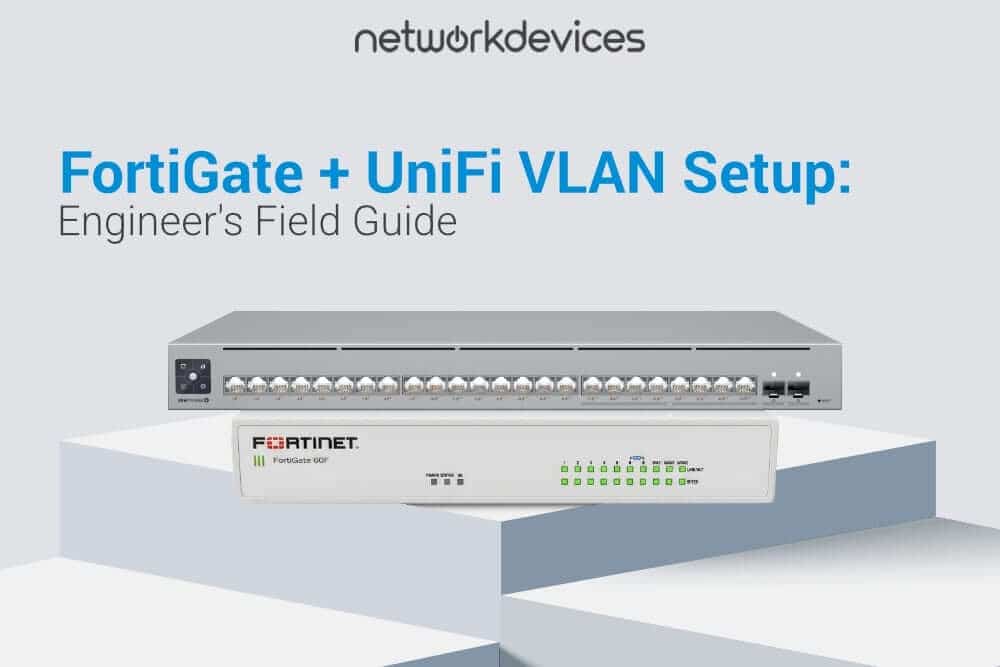

If your FortiGate firewall and UniFi switches are not passing VLAN traffic correctly, the problem is almost always one of three things: a native VLAN mismatch on the trunk port, a missing FortiGate firewall policy for DHCP or DNS, or a UniFi network that was created without selecting Third-party Gateway as the router. Fix those three, and the rest of the configuration is mechanical.
FortiGate firewalls (made by Fortinet) and UniFi switches (made by Ubiquiti) are one of the most common mixed-vendor pairings in SMB networks, and the interop friction between them generates a disproportionate share of troubleshooting tickets. This guide is written for network engineers, IT managers, and MSPs deploying FortiGate firewalls with UniFi switches and access points in SMB and mid-market environments. We assume you understand 802.1Q tagging conceptually and have CLI access to both platforms. The CLI examples were tested on a FortiGate running FortiOS 7.4 / 7.6 against UniFi Network Application 9.x.
The article covers four things in order: how each platform actually handles VLANs (because the architectural mismatch is what causes most issues), the exact step-by-step configuration on both sides, the verification commands that prove tagging is working, and the failure modes you will hit in production along with how to fix each one quickly.
TL;DR (Key Takeaways)
- FortiGate treats every VLAN as a Layer 3 sub-interface (portX.VID) with its own IP address, default gateway, and firewall policies. UniFi handles VLANs at Layer 2 and expects the upstream gateway to do the routing.
- When FortiGate is the router, every UniFi network must be created with the Router field set to Third-party Gateway. Without this, UniFi will fight FortiGate over DHCP and routing.
- Every FortiGate sub-interface needs an explicit firewall policy. No traffic flows between VLANs (or out to WAN) by default.
- Use trunk ports on the link between FortiGate and the UniFi switch, with all required VLANs explicitly tagged. Keep the native VLAN consistent on both sides.
- VLAN 1 must remain reachable during initial UniFi adoption. Move management to a dedicated VLAN only after the device is adopted, and the inform URL has been updated.
- Most "UniFi APs not getting DHCP from FortiGate" tickets come down to a missing FortiGate DHCP scope or a firewall policy that blocks UDP 67/68.
How FortiGate and UniFi Handle VLANs (And Why It Matters)
The architectural difference between the two platforms is the root cause of nearly every interoperability issue. FortiGate enforces Layer 3 segmentation through dedicated sub-interfaces, while UniFi operates primarily at Layer 2 and assumes the upstream gateway will handle routing.
Understanding this asymmetry is what separates a five-minute fix from a four-hour ticket.
FortiGate: Sub-Interfaces and 802.1Q Tag Processing
FortiGate creates one VLAN interface per VLAN ID, named in the format parent.vlanid (for example, port1.10 for VLAN 10 on port1). Each sub-interface has its own IP address, its own subnet, its own DHCP scope, and its own firewall policies, and acts as the default gateway for clients in that VLAN.
The valid VLAN ID range is 1 to 4094. VLAN 0 is reserved for priority-tagged frames, and VLAN 4095 is reserved per the 802.1Q standard. Traffic between sub-interfaces is blocked by default and must be explicitly permitted by policy, which is what makes FortiGate strong for segmentation but unforgiving when a policy is missing.
UniFi: Layer 2 Tagging and Native VLAN 1
UniFi switches and access points handle VLANs as port profiles and SSID assignments. They tag and untag frames according to the profile applied to each port, but they do not perform inter-VLAN routing unless you explicitly enable Layer 3 routing on a supported switch.
VLAN 1 is the default management network and is used for untagged adoption traffic. Changing the native VLAN on the trunk port or migrating management to a tagged VLAN before the device is fully adopted is the single most common cause of "stuck adopting" or "disconnected" devices.
Third-Party Gateway: The Setting That Decides Everything
When you create a Virtual Network in Settings → Networks, UniFi asks which router will handle that network. The two relevant choices are UniFi Gateway (UniFi handles DHCP and routing) or Third-party Gateway (UniFi only tags Layer 2 traffic and the upstream device handles Layer 3).
If FortiGate is your firewall, every VLAN you create in UniFi must be set to Third-party Gateway. If you leave it on UniFi Gateway without a UniFi Cloud Gateway present, you will get DHCP conflicts, routing loops, or silent dropouts that are extremely hard to diagnose.
Step-by-Step: FortiGate Side Configuration
Layer 3 lives on the FortiGate side. You configure one sub-interface per VLAN, attach a DHCP scope or relay, group the interfaces into a zone if you want simpler policies, and then write the firewall rules that allow the traffic you actually need.
1. Create the VLAN Sub-Interfaces
Use the CLI for clean, scriptable deployments. Replace port1 with the physical interface that is trunked to the UniFi switch.
config system interface
    edit "port1.10"
        set vdom "root"
        set type vlan
        set interface "port1"
        set vlanid 10
        set ip 192.168.10.1 255.255.255.0
        set allowaccess ping https ssh
        set role lan
        set description "Staff VLAN"
    next
    edit "port1.20"
        set vdom "root"
        set type vlan
        set interface "port1"
        set vlanid 20
        set ip 192.168.20.1 255.255.255.0
        set allowaccess ping https ssh
        set role lan
        set description "Voice VLAN"
    next
end
The set type vlan line is required. Without it, the FortiGate CLI will reject the configuration or treat the interface as something other than an 802.1Q sub-interface. Restrict allowaccess to the protocols you actually need on each VLAN, especially on guest or IoT networks.
2. Configure DHCP (Server Mode or Relay Mode)
For most SMB deployments, FortiGate-hosted DHCP is the simplest option.
config system dhcp server
    edit 1
        set interface "port1.10"
        set lease-time 86400
        set netmask 255.255.255.0
        set default-gateway 192.168.10.1
        config ip-range
            edit 1
                set start-ip 192.168.10.100
                set end-ip 192.168.10.200
            next
        end
    next
end
If you have a centralized Windows or Linux DHCP server, configure relay mode (also called a helper IP) on the sub-interface instead.
config system interface
    edit "port1.20"
        set dhcp-relay-service enable
        set dhcp-relay-ip "192.168.1.10"
    next
end
3. Group Sub-Interfaces Into a Zone (Optional but Recommended)
Zones let you write one policy that applies to many VLANs, which keeps the policy table manageable as the network grows.
config system zone
    edit "LAN"
        set interface "port1.10" "port1.20"
    next
end
4. Write Explicit Firewall Policies
No traffic flows between FortiGate interfaces by default. The minimum policy you need is one that lets each VLAN reach the WAN.
config firewall policy
    edit 1
        set name "VLAN10_to_Internet"
        set srcintf "port1.10"
        set dstintf "wan1"
        set srcaddr "all"
        set dstaddr "all"
        set action accept
        set schedule "always"
        set service "ALL"
        set nat enable
        set logtraffic all
    next
end
Avoid blanket "any-to-any" rules. Create granular policies per VLAN and per service, enable logging during deployment, and tighten the rules once you have observed the actual traffic patterns.
Step-by-Step: UniFi Side Configuration
The UniFi side is purely Layer 2 once you have selected the third-party gateway. You create the network, assign it to switch port profiles, and apply it to the SSIDs that need it.
1. Create the Virtual Network
Open the UniFi Network Application and go to Settings → Networks → Create New Network. Give it a clear name (for example, VLAN10-Staff) and set the VLAN ID to match the FortiGate sub-interface exactly.
Under Router, select Third-party Gateway. Leave the gateway IP and DHCP fields blank. UniFi will now treat this as a tag-only network and will not attempt to route or assign addresses for it.
2. Assign the VLAN to Switch Port Profiles
Go to Settings → Profiles → Switch Ports (path may vary slightly by UniFi version). For the link between FortiGate and the UniFi switch, create or edit a trunk profile that has the Native VLAN set to your management VLAN (typically VLAN 1 during initial deployment) and includes all required VLANs as Tagged.
For access ports facing endpoint devices, create a profile per VLAN with the Native VLAN set to that VLAN. Apply the appropriate profile to each port in UniFi Devices → Switch → Ports. Devices → Switch → Ports.
3. Apply the VLAN to Wireless SSIDs
Go to Settings → WiFi, edit or create the SSID, and under Network select the virtual network you created. Wireless clients on that SSID will now be tagged into the correct VLAN at the AP and forwarded across the trunk to FortiGate.
For guest VLANs, apply network isolation in the SSID settings and confirm on the FortiGate side that the guest sub-interface has a policy permitting only the services you want (DHCP, DNS, HTTPS to WAN) and explicit deny rules for inter-VLAN traffic.
Verifying VLAN Tagging Actually Works
A configuration that looks correct in the GUI can still fail at the wire level. These commands tell you what is actually happening on the link.
On the FortiGate
To watch tagged traffic in real time on the trunk:
diagnose sniffer packet any 'vlan' 4The 4 is the verbosity level and shows packet headers including VLAN tags. If you see frames with the expected VLAN IDs, tagging is working in at least one direction.
To see which interfaces FortiGate has learned ARP entries on:
get system arpTo debug DHCP relay specifically:
diagnose debug application dhcprelay -1 diagnose debug enableA working flow shows DHCP DISCOVER → forwarded to relay IP → OFFER returned → ACK. If the chain breaks, the next step is to check policy logs in Log & Report → Forward Traffic.
On the UniFi Side
SSH into a UniFi switch or AP (default credentials are configured under Settings → System → Advanced → Device Authentication) and run:
InfoThis returns the model, firmware, controller URL, and current adoption status. If status is Connected, the device is talking to the controller. If it shows Unreachable or points to an old controller IP, fix the inform URL:
set-inform http://<controller-ip>:8080/informRun the command twice when prompted, then click Adopt in the controller.
Hardware Recommendations for SMB and Mid-Market Deployments
| Model | Ports | PoE Budget | VLAN Support | Best For |
|---|---|---|---|---|
| FortiGate 60F | 10x GE | N/A | 4094 VLANs | Branch office (up to 50 users) |
| FortiGate 90G | 18x GE | N/A | 4094 VLANs | Mid-size office (50–200 users) |
| UniFi Pro Max 24 PoE | 24x GE + 2x SFP+ | 400W | Full 802.1Q | Access layer |
| UniFi Pro Max 48 PoE | 48x GE + 4x SFP+ | 720W | Full 802.1Q | High-density access |
When sizing a deployment, consider PoE budget carefully. A modern Wi-Fi 6E AP can pull 25W to 35W under load, and PoE++ cameras and access control hardware push that higher. Plan for at least 30% headroom in the PoE budget.
Common Failures and How to Fix Them Fast
These are the failures we see in real deployments, ranked by frequency.
UniFi APs Not Getting DHCP From the FortiGate VLAN
Symptom: The AP comes up on the correct VLAN; the switch port shows tagged traffic, but the AP never receives an IP address.
Cause: Either the FortiGate sub-interface for that VLAN does not have a DHCP server configured, or a firewall policy is blocking UDP 67 and 68 between the AP's VLAN and the relay or DHCP server.
Fix: Confirm config system dhcp server exists for that sub-interface, or that set dhcp-relay-service enable is set with a reachable relay target. Then check Log & Report → Forward Traffic for blocked UDP/67-68 traffic.
Mismatched Native VLAN on the Trunk
Symptom: Devices land in the wrong subnet, get the wrong DHCP scope, or lose connectivity intermittently.
Cause: FortiGate and UniFi disagree on which VLAN is "native" (untagged). Untagged frames end up on different VLANs depending on direction.
Fix: Match the native VLAN on both sides. The simplest approach is to leave VLAN 1 as native on the trunk port profile in UniFi and not assign an IP to the bare physical interface on FortiGate (configure all production VLANs as tagged sub-interfaces).
FortiGate Policy Blocking DHCP or DNS
Symptom: Clients get an IP but cannot resolve hostnames, or no IP at all on a relay-configured VLAN.
Cause: Missing or overly restrictive firewall policy on UDP 67/68 (DHCP) or UDP/TCP 53 (DNS).
Fix: Create explicit policies that permit DHCP and DNS services from the source VLAN to the destination (the FortiGate itself for hosted DHCP, or the relay target for relayed DHCP). Enable
UniFi Switch or AP Shows "Disconnected" After a VLAN Change
Symptom: Device was adopted and working, then went offline after you changed the management VLAN.
Cause: The inform URL on the device still points to the old controller path on the old VLAN, but the device is now tagged into a network that cannot reach that path.
Fix: SSH directly to the device using its new IP, run set-inform http://<controller-ip>:8080/inform, and re-adopt from the controller. If you cannot SSH in, factory-reset the device and start over.
Security Considerations You Should Not Skip
Two notes that most VLAN guides leave out.
Avoid Using VLAN 1 for Production Traffic
VLAN 1 is the default, untagged VLAN on every Layer 2 switch in the world. Any port that comes up unconfigured drops into VLAN 1, which means a misconfigured port can leak into your management network. Use VLAN 1 for adoption only, then put production traffic on tagged VLANs starting at 10 or higher.
Isolate the Management VLAN
After all UniFi devices are adopted, move them to a dedicated management VLAN (for example, VLAN 99) and update the inform URL accordingly. Restrict that VLAN with FortiGate policies so that only your admin workstation subnet can reach it on TCP 22, 443, and 8443. This is a baseline best practice for any FortiGate UniFi deployment.
When to Move Beyond FortiGate-Hosted DHCP
For networks with fewer than 200 clients and three or four VLANs, running DHCP on the FortiGate is the simplest and most maintainable option. Beyond that scale, consider migrating to a centralized DHCP server (Windows Server, ISC DHCP, or a dedicated appliance) for three reasons: better lease visibility, easier integration with DNS records, and simpler high-availability design.
When you make that move, switch each FortiGate sub-interface from DHCP server mode to relay mode, and point it to the centralized server's IP address.


FAQs
1. Why are my UniFi APs not getting DHCP from the FortiGate?
Usually, a missing DHCP scope on the FortiGate sub-interface or blocked UDP 67/68 traffic in your firewall policy. Check those two first, then verify the native VLAN on the trunk port matches between the FortiGate and the UniFi switch. Most "no DHCP" tickets resolve at one of these three points.
2. Do I need to use Third-party Gateway mode in UniFi?
Yes, when FortiGate is your router. Set the Router field to Third-party Gateway for every Virtual Network in UniFi. This prevents UniFi from running its own DHCP and routing on that network, allowing FortiGate to take full Layer 3 control.
3. Do UniFi switches support VLANs?
Yes, all UniFi switches support full 802.1Q VLAN tagging out of the box. You define VLANs in the UniFi Network Application as Virtual Networks, then apply them to switch port profiles and SSIDs. UniFi switches operate at Layer 2 by default; select Pro and Pro Max models also support Layer 3 inter-VLAN routing if you need to route locally on the switch.
4. Can I use the FortiGate as the DHCP server for all VLANs?
Yes, configure one DHCP scope per sub-interface using config system dhcp server. There is no hard limit for SMB-scale deployments, but if you exceed about 200 clients across multiple VLANs, plan to move to a centralized DHCP server with FortiGate in relay mode.
5. What port type should I use on the UniFi switch, tagged or untagged?
Tag VLANs on uplink and inter-switch ports; leave the client-facing access port untagged in its assigned VLAN. The trunk between the FortiGate and the UniFi switch carries all VLANs as tagged, with one untagged native VLAN (typically VLAN 1) for management. End-device access ports should have a single untagged VLAN matching the network for that device.